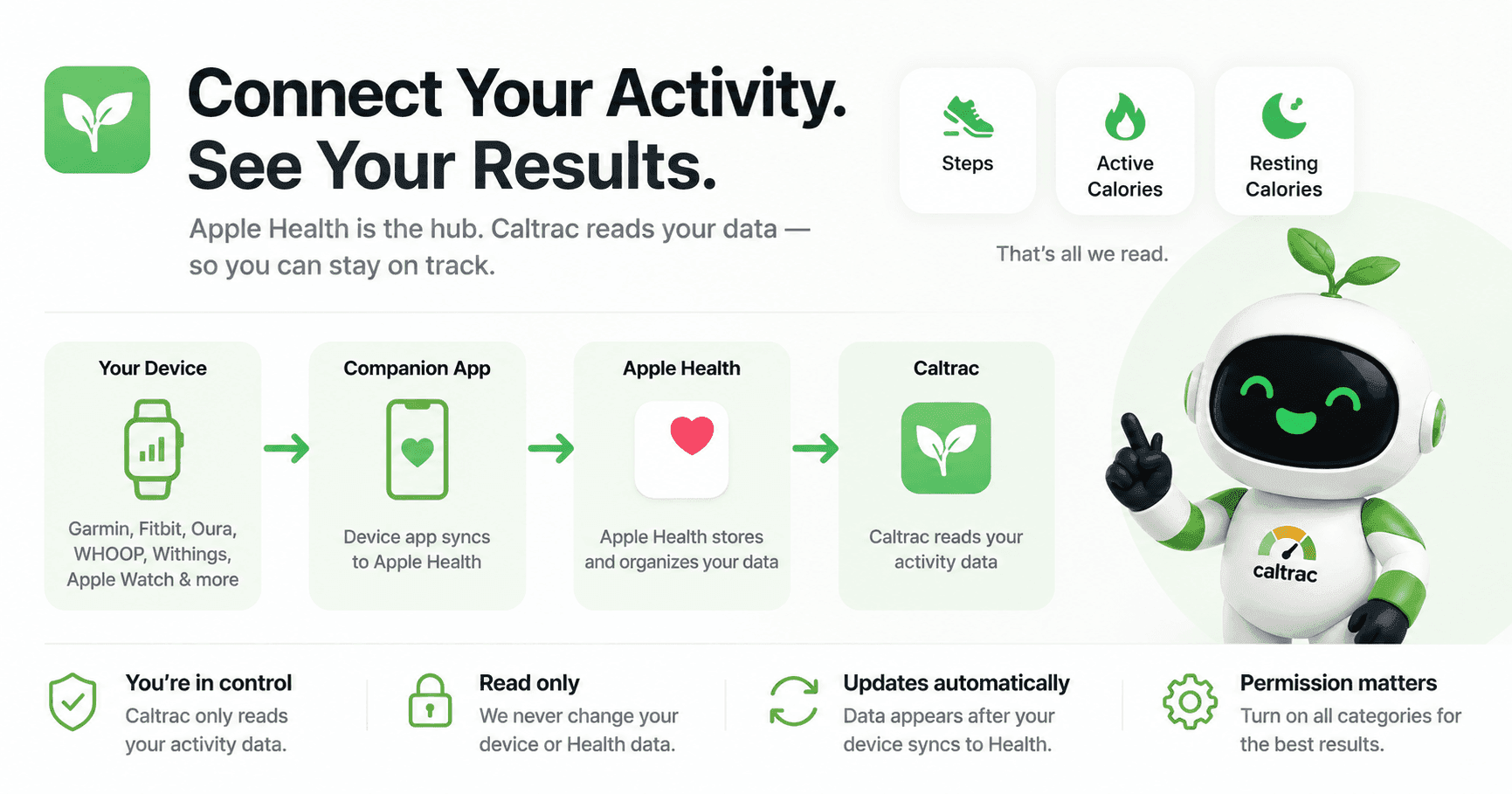

Caltrac can show your calories burned and steps from almost any fitness tracker — Galaxy Watch, Garmin, Oura, WHOOP, Fitbit, and more. This guide covers how to sync your fitness tracker with Health Connect and Caltrac, how the connection works under the hood, how to make Samsung Health feed it properly, and how to fix the most common issues.
How syncing works
Everything flows through a single hub:
Your device → its companion app → Health Connect → Caltrac
Caltrac doesn't link to Samsung, Garmin, Fitbit, or Oura accounts directly. If an app can write its data to Health Connect, Caltrac can read it. That's the whole model — every setup and troubleshooting step here just keeps that pipeline flowing.
Caltrac only reads your health data. It never writes steps, calories, weight, or anything else back into Health Connect, and never changes anything on your device.
Nothing to install. Caltrac for Android requires Android 14 or newer, where Health Connect is part of the operating system. There's no Health Connect app to download and no separate account to make — it's already on your phone, at Settings → Security & privacy → Privacy controls → Health Connect.
What Caltrac reads
Six data types, all read-only:
| Data type | What it's for |
|---|---|
| Steps | Your daily step count |
| Active calories burned | Calories burned through movement and exercise |
| Basal metabolic rate | Calories your body burns at rest |
| Total calories burned | A fallback, used only to work out resting burn |
| Weight | Keeps your Caltrac weight history current |
| Height | Keeps your profile height current |
Your total calories burned = active + resting, and the hourly burn graph on your dashboard comes from Active calories burned.
How resting energy is worked out. Caltrac prefers Basal metabolic rate. If nothing writes that, it falls back to Total calories burned minus Active — and if neither is available, resting is simply left blank. Total is never added on top of Active; that would double-count your entire day.
Caltrac does not read heart rate, sleep, workouts, blood oxygen, or nutrition. It reads only the date range you're currently viewing, in your local time zone — which matters for the midnight note below.
Two extra permissions you may be asked for
| Permission | Why Caltrac asks |
|---|---|
| Access past data | Without it, Health Connect only hands over the last 30 days. Weight and height history — and any older day you scroll back to — need it. |
| Background access | Optional, and only offered if you already share weight. It keeps your weight in step without opening the app. |
Skip either one and Caltrac still works — it just falls back to your Caltrac-stored history for older dates.
Set up in two steps
1. Send your device's data to Health Connect
This happens in your device's own companion app, and the path varies by brand — see the device list below. Tracking steps with just your phone? Whichever app counts them (Samsung Health, Google Health) still has to be allowed to write to Health Connect.
2. Let Caltrac read Health Connect
- In Caltrac, tap Connect Health Connect on your dashboard.
- On the Health Connect permission screen, turn on every requested type — Steps, Active calories burned, Total calories burned, Basal metabolic rate, Weight, and Height. (Fastest: Allow all.)
- If you're offered access to past data, allow that too.
- Tap Allow.
Skip a toggle and that one figure will simply be missing from Caltrac. Unlike on iPhone, Caltrac can see which types you allowed — so if something's missing, the Health card tells you exactly which permission to turn on.
If Caltrac shows no data
The catch on Android: Health Connect stops showing its permission screen after you've dismissed it twice. From then on, tapping Connect in Caltrac does nothing at all — the request returns instantly with nothing granted, and no screen appears. Caltrac detects this and swaps in a message: "Health Connect won't ask again — change it in settings."
Fix it in Health Connect:
- Open Settings → Security & privacy → Privacy controls → Health Connect (or tap Open Health Connect settings in Caltrac, which takes you straight there)
- Tap App permissions → Caltrac
- Turn on Steps, Active calories burned, Total calories burned, Basal metabolic rate, Weight, and Height — or tap Allow all
- Under Additional access, allow past data if you want history older than 30 days
Reopen Caltrac and pull to refresh; your data should appear. Granting from settings clears the lockout, so the in-app Connect button works normally again.
Connect your device
Every device follows the same shape: open its companion app and enable sharing to Health Connect. Not every app writes all the metrics Caltrac reads — here's what to expect:
| Device / app | Steps | Active | Resting | Notes |
|---|---|---|---|---|
| Samsung Health / Galaxy Watch | ✓ | — | ✓ | No active calories — see below |
| Google Health (Fitbit, Pixel Watch) | ✓ | ✓ | ✓ | Reads and writes fitness data |
| Garmin | ✓ | ✓ | — | Via Garmin Connect |
| Oura | ✓ | ✓ | — | Also writes weight and height |
| WHOOP | — | ✓ | — | Calories from recorded activities only |
| Peloton | — | ✓ | — | Workouts / active calories |
| Withings | ✓* | ✓ | — | *Steps don't always export |
| Phone only | ✓ | — | — | Steps come from whichever app counts them |
Samsung Health / Galaxy Watch — Has its own section below; it's the most common Android setup and the one with the biggest gotcha.
Google Health (formerly the Fitbit app) — Open Google Health → Connections → Partner apps → Sync your favorite health apps → Set up, choose the fitness data types, and grant the permissions. It both reads and writes steps, active calories, total calories, distance, exercise, and body measurements — so it's the simplest way to get Active energy flowing for Fitbit and Pixel Watch users.
Garmin — Open Garmin Connect → More → Settings → Connected Apps → Health Connect, then allow steps and calorie data. Garmin shares steps, active and total calories, weight, and body fat; it deliberately withholds its proprietary metrics like Body Battery and training load, which Caltrac doesn't use anyway. The link is one-way — Garmin won't read anything back.
Oura — Open the Oura app → menu (upper left) → Settings → Data Sharing → Health Connect, and toggle on activity and energy. Oura writes active calories, steps, weight, and height, but not resting energy.
WHOOP — Open WHOOP → menu → Integrations → Health Connect → Connect, and allow the requested types. WHOOP mainly shares calories from recorded activities, not all-day steps or resting energy.
Peloton — Connect Health Connect from the Peloton app's settings and allow Exercise and Active calories. Workouts sync when you open the Peloton app after a class.
Withings — Open the Withings app → Profile → Settings (⚙, upper right) → Export health data to Health Connect, then toggle on the categories you want. Withings doesn't always push automatically — open its app to force a refresh — and some users find steps don't export even when everything else does.
Menu names vary by app version. If a path doesn't match exactly, look for "Health Connect," "Connected services," "Data sharing," or "Integrations" in the app's settings.
Making Samsung Health work with Health Connect
Samsung Health is the hub for Galaxy phones and Galaxy Watches, and it does write to Health Connect — but only some of what Caltrac reads. Set it up first, then read the caveat.
Set it up
- Update Samsung Health from the Galaxy Store or Play Store — older versions don't offer Health Connect at all.
- Open Samsung Health → Settings (⚙, or ⋮ → Settings).
- Tap Health Connect (on some versions: Connected services → Health Connect).
- Tap App permissions → Samsung Health, and allow the data types — at minimum Steps, Total calories burned, Basal metabolic rate, Weight, and Height.
- Back in Caltrac, tap Connect Health Connect and allow everything on Caltrac's own screen.
Wearing a Galaxy Watch? There's nothing to configure on the watch. It syncs to Samsung Health on your phone, and Samsung Health passes the data to Health Connect. Health Connect doesn't run on Wear OS itself, so the phone is always in the middle.
The one thing to know about Samsung and calories
Samsung Health doesn't write Active calories burned to Health Connect. It writes calories from recorded exercise as Total calories burned, plus a Basal metabolic rate — but it never publishes an all-day active-energy figure.
What that means in Caltrac:
- Steps — work perfectly.
- Resting energy — works, from Samsung's basal metabolic rate.
- Active energy — blank, and the hourly burn graph stays empty.
If you want a full active-vs-resting split, add a source that does write Active calories — Google Health, Garmin, Oura, WHOOP, or Peloton — and it will slot in alongside Samsung's data. Otherwise, treat the burned figure in Caltrac as your resting baseline.
Samsung sync quirks
- Samsung Health's continuous activity tracker doesn't sync. Only recorded exercise sessions cross into Health Connect, so a walk you never started as a workout may add steps without adding calories.
- Watch data isn't instant. Galaxy Watch → phone syncing follows Samsung's battery-saving schedule. Data created on the phone itself syncs as soon as it's written; watch data can lag. Opening Samsung Health usually nudges it along.
- Samsung Health missing from Health Connect? It only appears once it's been granted permissions from inside Samsung Health — Health Connect can't add it for you.
Why data can look "missing"
Sync lag — data appears only after your device's app syncs to Health Connect, and that can take a while. Opening the companion app usually forces a sync; then reopen or refresh your Caltrac dashboard.
Foreground reads — Health Connect hands data to apps running in the foreground. Caltrac reads when you open or refresh it, not continuously in the background, so a fresh look at the dashboard is often all it takes.
Just after midnight, there's no data yet. Caltrac shows a dash (—) for burned calories and net balance. That's normal — the day simply hasn't accumulated any activity — not a broken connection.
Older than 30 days? If you didn't grant access to past data, Health Connect withholds anything from before you connected. Caltrac falls back to its own stored history for those days, so your dashboard still fills in — it just won't pull older figures from your tracker.
Using two or more devices
If several apps write the same metric — say your phone, your Galaxy Watch, and Garmin all writing Steps — Health Connect combines them into one total, using a priority list to decide which source wins where they disagree. Caltrac reads that combined total, so your numbers stay accurate as long as the order is right. By default, your phone's own step count sits at the bottom of the list.
If numbers look too high, or the wrong device seems to be winning:
- Open Health Connect → Manage data → Data sources and priority
- Choose Activity
- Drag your most accurate source to the top (e.g., your watch above your phone)
- Or tap the ⋮ next to a source and remove it from aggregation — it keeps writing data, but stops counting toward your totals
Troubleshooting
| Symptom | Likely cause | Fix |
|---|---|---|
| Connect button does nothing | The permission screen was dismissed twice and is now suppressed | Grant access in Settings → Security & privacy → Privacy controls → Health Connect → App permissions → Caltrac |
| Card says a specific type is missing | That toggle was left off | Turn it on in Health Connect → App permissions → Caltrac |
| No active calories, only resting | Samsung Health doesn't write Active calories | Add a source that does — Google Health, Garmin, Oura, WHOOP, Peloton |
| Numbers look too high | Two sources both counting | Reorder or remove sources in Manage data → Data sources and priority → Activity |
| No burned calories after midnight | New day, no data yet | Expected — check back once you've been active |
| Older days look empty | "Access past data" wasn't granted | Allow it under Additional access in Caltrac's Health Connect permissions |
| Device data missing or stale | Sync lag or sharing not enabled | Open the device's app to sync; confirm it's allowed to write to Health Connect |
| No Health Connect on the phone | Android 13 or older | Caltrac for Android needs Android 14 or newer |
| Using an iPhone | Different hub | Syncs via Apple Health — see the iOS guide |
Your privacy
Caltrac reads Steps, Active calories burned, Total calories burned, Basal metabolic rate, Weight, and Height from Health Connect. Activity data is used only to show your calories burned, net balance, and daily steps, and stays on your device — it's never uploaded. Weight and height are saved to your Caltrac profile so your history follows you across devices. Caltrac never writes to Health Connect, and never uses health data for advertising.
You can revoke any of it at any time in Settings → Security & privacy → Privacy controls → Health Connect → App permissions → Caltrac. Caltrac notices immediately and stops showing the affected figures.
New here? Get started with Caltrac and connect your tracker in under a minute.