Caltrac can show your calories burned from almost any fitness tracker — Apple Watch, Garmin, Oura, WHOOP, and more. This guide covers how to sync your fitness tracker with Apple Health and Caltrac, how the connection works under the hood, and how to fix the most common issues.
How syncing works
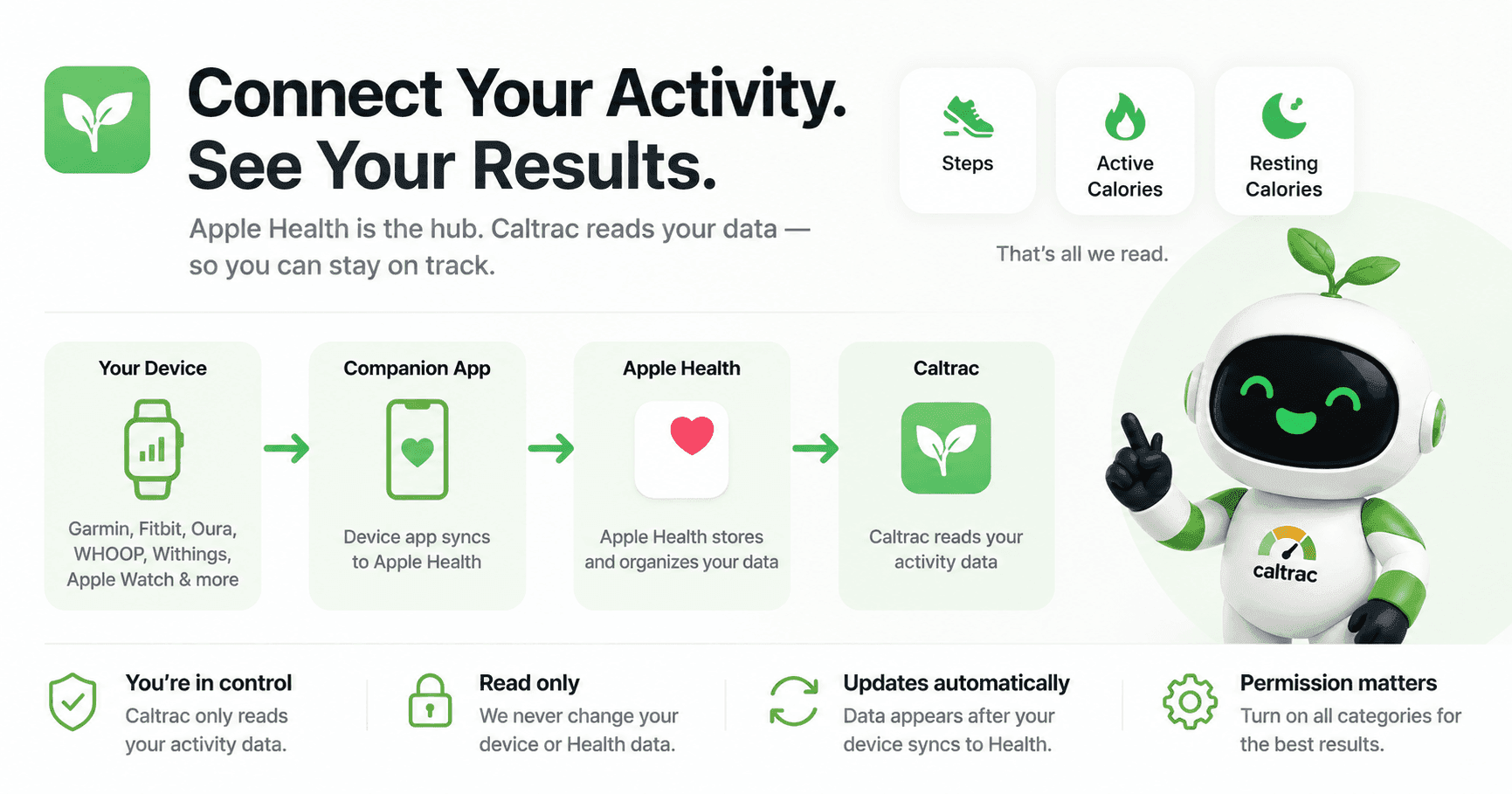
Everything flows through a single hub:
Your device → its companion app → Apple Health → Caltrac
Caltrac doesn't link to Garmin, Fitbit, Oura, or other accounts directly. If a device can write its data to Apple Health, Caltrac can read it. That's the whole model — every setup and troubleshooting step here just keeps that pipeline flowing.
Caltrac only reads your activity data. It never changes your steps or calories-burned data in Apple Health, or anything on your device.
What Caltrac reads
Just three things:
| Metric | What it is |
|---|---|
| Steps | Your daily step count |
| Active Energy | Calories burned through movement and exercise |
| Resting Energy | Calories your body burns at rest |
Your total calories burned = Active + Resting, and the hourly burn graph on your dashboard comes from Active Energy.
Heads-up on Resting Energy: it usually comes from an Apple Watch. Most third-party trackers — and the iPhone on its own — don't write it. Without a watch, Resting Energy may be blank and your total will reflect Active Energy only.
Caltrac does not read workout details, heart rate, sleep, or weight. It also reads only the date range you're currently viewing, in your local time zone — which matters for the midnight note below.
Set up in two steps
1. Send your device's data to Apple Health
This happens in your device's own companion app, and the path varies by brand — see the device list below. Using an Apple Watch? You can skip this step: it writes to Apple Health automatically.
2. Let Caltrac read Apple Health
- In Caltrac, tap Connect Apple Health.
- On Apple's permission sheet, turn on every requested category — Steps, Active Energy, and Resting Energy. (Fastest: Turn All Categories On.)
- Tap Allow.
Skip a toggle and that data will simply be missing from Caltrac.
If Caltrac shows no data
The catch: for privacy, iOS never tells an app whether it was granted read access to Health data. So if you tapped Don't Allow — or missed a toggle — Caltrac can't detect it. It just sees no data and keeps showing the Connect prompt. Reconnecting inside the app won't re-prompt you.
Fix it in Settings:
- Open Settings → Apps → Health → Data Access & Devices (older iOS: Settings → Health → Data Access & Devices)
- Tap Caltrac
- Turn on Steps, Active Energy, and Resting Energy — or Turn All Categories On
Reopen Caltrac and refresh; your data should appear.
Connect your device
Every device follows the same shape: open its companion app and enable sharing to Apple Health. Not every device shares all three metrics — here's what to expect:
| Device | Steps | Active | Resting | Notes |
|---|---|---|---|---|
| Apple Watch | ✓ | ✓ | ✓ | Syncs automatically |
| Garmin | ✓ | ✓ | — | Via Garmin Connect |
| Oura | ✓ | ✓ | — | No resting energy |
| WHOOP | — | ✓ | — | Active calories from recorded workouts only |
| Withings | ✓ | ✓ | — | May need a manual refresh |
| Peloton | — | ✓ | — | Workouts / active energy |
| Fitbit | ✓* | ✓* | — | *Via a third-party bridge app |
| Samsung Health | — | — | — | Can't write to Apple Health |
Apple Watch — Nothing to set up; it syncs automatically. Just finish Step 2 above.
Garmin — Open Garmin Connect → More → Settings → Connected Apps → Apple Health → Connect, then allow Steps and calorie data on Apple's sheet.
Oura — Open the Oura app → menu → Settings → Apple Health → Connect, and allow the activity and energy categories. Oura shares steps and active calories, but not resting energy.
WHOOP — Open WHOOP → menu (bottom-right) → Integrations → Apple Health → Connect, and allow the requested categories. WHOOP mainly shares active calories from recorded activities, not steps or resting energy.
Withings — Open the Withings app (formerly Health Mate) → Share tab → under Apps, tap Health, and follow the prompts. Withings doesn't always push automatically — open the Withings app to refresh.
Peloton — Connect Apple Health from the Peloton app's settings, or in Health → Sharing → Apps → Peloton, allowing Workouts and Active Energy. Workouts sync when you open the Peloton app after class.
Fitbit — Fitbit doesn't write to Apple Health natively yet. The Google Health app (which replaced the Fitbit app in 2026) can read from Apple Health, but exporting Fitbit data back to Apple Health hasn't launched — Google says it's coming later in 2026. Until then, use a third-party bridge app from the App Store; once it writes Steps and energy data to Health, Caltrac picks it up like any other source.
Samsung Health — Doesn't write to Apple Health, so Samsung-only devices won't appear in Caltrac on iOS. (On Android, the equivalent hub is Health Connect — covered in a separate article.)
Menu names vary by app version. If a path doesn't match exactly, look for "Apple Health," "Connected apps," or "Integrations" in the app's settings.
Why data can look "missing"
Sync lag — data appears only after your device's app syncs to Apple Health, and that can take a while. Opening the device's companion app usually forces a sync; then reopen or refresh your Caltrac dashboard.
Just after midnight, there's no data yet. Caltrac shows "No activity yet today" with a Synced status. That's normal — the day simply hasn't accumulated any activity — not a broken connection.
Using two or more devices
If multiple sources write the same metric — say your iPhone, Apple Watch, and a Fitbit bridge all writing Steps — Apple Health de-duplicates them and picks a winner by source priority. Caltrac reads that de-duplicated total, so your numbers stay accurate as long as the priorities are right.
If numbers look too high, or the wrong device seems to be "winning":
- Open the Health app → find the metric (e.g., Steps)
- Tap Data Sources & Access
- Tap Edit and drag your most accurate device to the top (e.g., your watch above your phone for steps)
Troubleshooting
| Symptom | Likely cause | Fix |
|---|---|---|
| Still says "Connect Apple Health" | Read access was denied | Re-enable categories in Settings → Apps → Health → Data Access & Devices → Caltrac |
| Numbers look too high | Double-counting sources | Reorder priority in Health → (metric) → Data Sources & Access |
| No burned calories after midnight | New day, no data yet | Expected — check back once you've been active |
| Device data missing or stale | Sync lag or not sharing | Open the device's app to sync; confirm it writes Steps + Active Energy (Resting comes from your Apple Watch, if you have one) |
| Using Android | Different hub | Syncs via Health Connect — see the Android guide |
Your privacy
Caltrac reads only Steps, Active Energy, and Resting Energy from Apple Health, uses them solely to show your calories burned and net calorie balance, and never changes your steps or calories-burned data in Apple Health.
New here? Get started with Caltrac and connect your tracker in under a minute.